Import employees from CSV
Map columns, preview a dry-run diff, apply — re-usable for the monthly HR export.
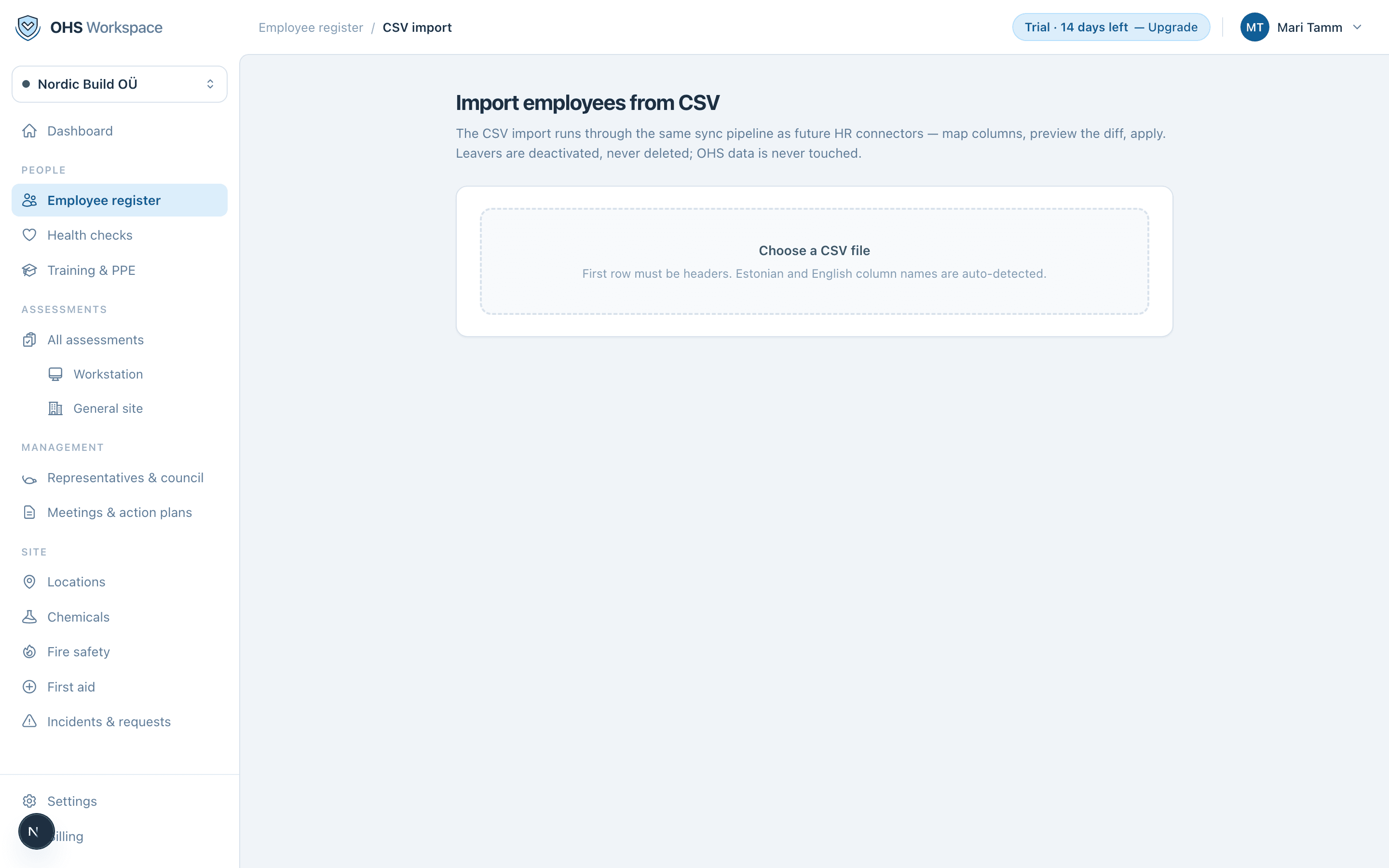
The CSV import runs through the same sync pipeline that future HR connectors will use: map columns, preview the diff, apply. It's built to be re-run — next month's export from your HR system goes through the same three steps.
- 1Upload the file
People → Employee register → Import. The first row must be headers; Estonian and English column names are detected automatically.
- 2Map the columns
Match your columns to first name, last name (or full name), email, personal code, position and external ID. Columns you don't need are ignored.
- 3Preview the dry run
Before anything is written you see exactly what would happen: how many rows are new, changed, deactivated, reactivated, unchanged, and how many duplicate rows were skipped.
- 4Apply
Only after you confirm does the import write anything. The result banner repeats what was created, updated, and deactivated.
Full-register sync
By default the import only adds and updates. If the file is your complete register, enable “Deactivate active employees missing from this file” — that turns the import into a full sync, so leavers are deactivated in the same run. Leave it off for partial lists.
Everything in these docs is a 14-day free trial away — no card needed.